Unreal Engine5에서 Github를 연동하는 방법
Git 설치
UE5의 프로젝트를 Github에 연동하기 위해서는 Git과 Git Desktop을 설치해야 합니다.
일단 Git을 설치하기 위해 아래의 주소에 접속한 후, 이미지들의 순서대로 설치하시면 됩니다.
Git - Downloads
Downloads macOS Windows Linux/Unix Older releases are available and the Git source repository is on GitHub. Latest source Release 2.49.0 Release Notes (2025-03-14) Download Source Code GUI Clients Git comes with built-in GUI tools (git-gui, gitk), but ther
git-scm.com


설치가 완료됐다면 설치된 Git bash를 켠 후, "git lfs install" 명령어를 입력하고 다시 종료해주세요.

해당 명령어를 입력하는 이유는 언리얼 프로젝트를 Git과 연동할 때, 특히 큰 파일을 효율적으로 관리하기 위해 Git LFS (Large File Storage)를 설정하기 위함입니다.
[git lfs install]
- Git LFS를 설치하고 초기화합니다. 이 명령어는 Git LFs가 프로젝트에서 사용할 수 있도록 설정합니다.
- Git LFS는 큰 파일(이미지, 비디오, 3D 모델 등)을 Git 저장소에서 관리할 수 있도록 도와줍니다.
기본 Git은 큰 파일을 효과적으로 처리하지 못하므로, LFS를 사용하여 파일을 외부 스토리지에 저장하고, Git은 그 파일에 대한 포인터만 유지하게 됩니다.
Github Desktop 설치
아래의 사이트에 접속하여 Github Desktop을 설치하면 됩니다.
GitHub Desktop | Simple collaboration from your desktop
github.com
Github Desktop 설치가 완료됐다면, 프로그램을 실행하고 본인의 Github 계정으로 연동해주시면 됩니다.
여기까지 했으면 이제는 따로 설치가 필요한 것은 없습니다.
본격적으로 언리얼 엔진에서의 에디터 설정을 진행해보겠습니다.
언리얼 엔진 에디터 설정
언리얼 엔진에서 Git을 사용하기 위해서는 Git 플러그인을 설치해야 합니다.
UE5에서 좌측 상단의 메뉴 바 중, [Edit] - [Plugins]에 들어갑니다.

들어간 후, Git을 검색하여 Git (Beta)를 찾아 설치해줍니다.
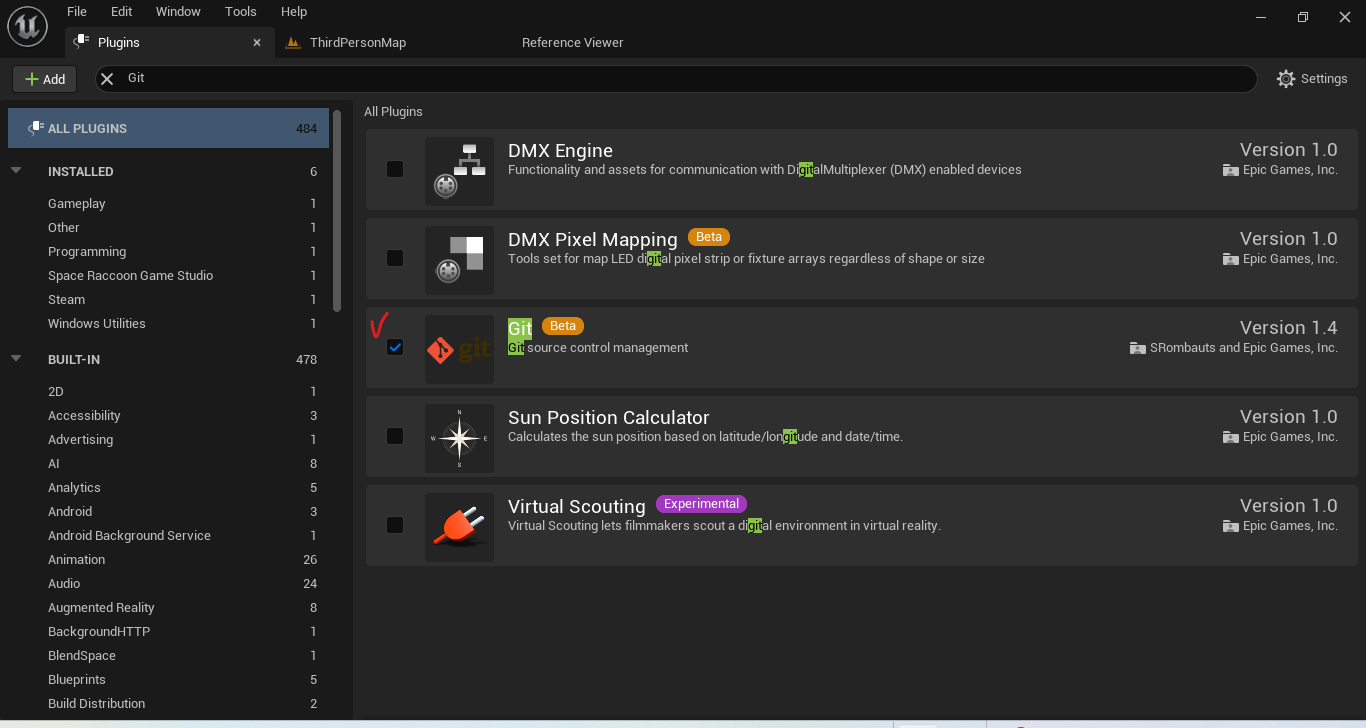
설치 한 후, 'Restart'가 뜨시면 재시작하시면 됩니다.
여기까지의 모든 과정이 끝났으면, 이제 본격적으로 Git 연동과 Commit을 진행해야 합니다.
Git 연동
Git 연동을 하기 위해서 'Git Desktop'을 실행합니다.

Create new repository...
Git 연동을 할 Repository가 없다면 해당 옵션을 통해 새로운 Repository를 생성하여 프로젝트를 연동합니다.
Repository의 이름과 설명, 그리고 연동을 진행할 언리얼 프로젝트가 있는 경로를 'Local path'에서 설정해줍니다.
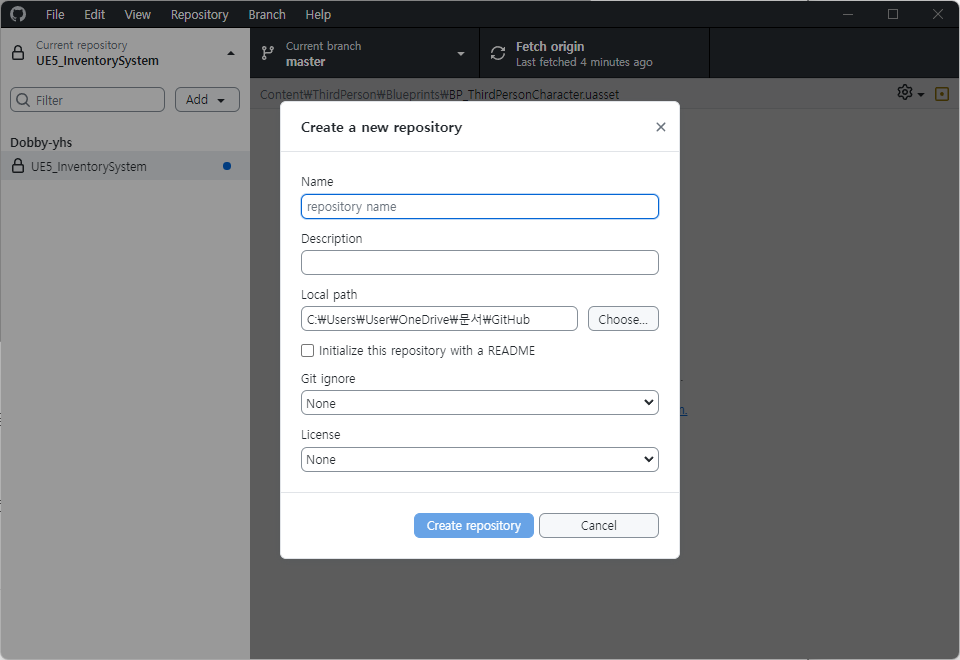
Add existing repository...
Git 연동을 할 Repository가 존재한다면, 해당 옵션을 통해 기존 Repository에 프로젝트를 연동합니다.
연동을 진행할 언리얼 프로젝트가 있는 경로를 찾아서 설정해줍니다.
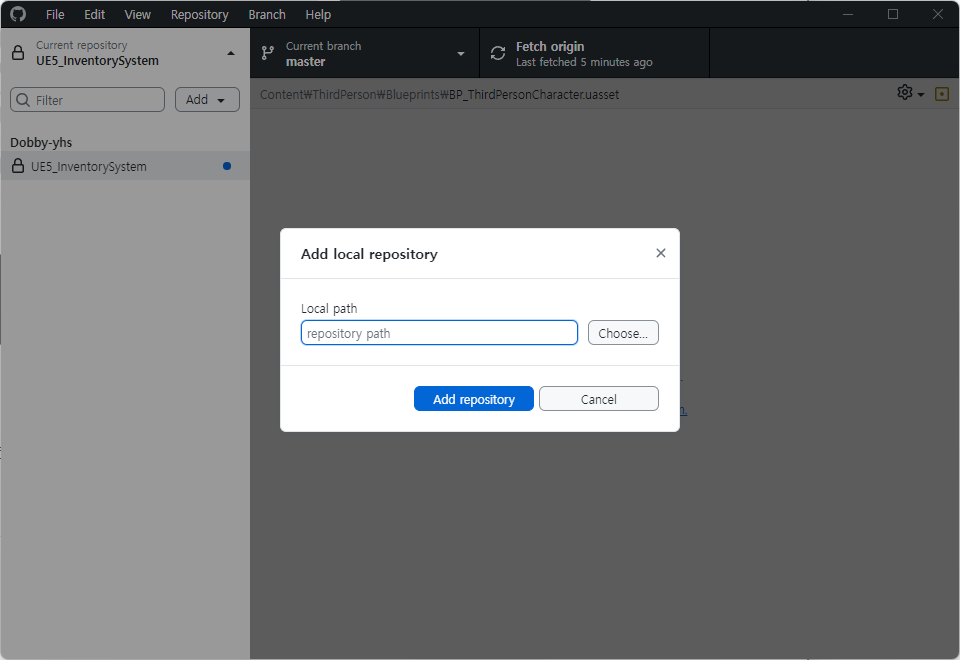
경로 설정은 두 옵션 모두, 프로젝트 내부까지 경로가 포함되어야 합니다.
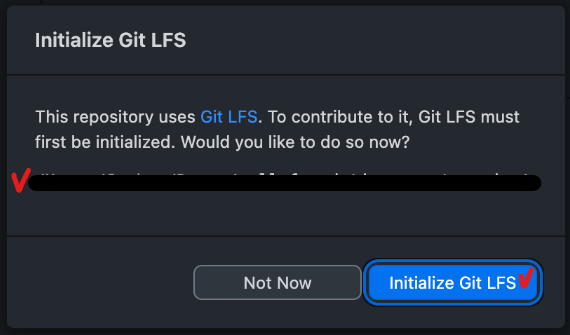
설정을 모두 마치고 'Create(Add) Repository'를 해주면, 아래의 창이 뜹니다.
검정색으로 지운 곳에 설정하신 프로젝트의 경로가 뜨고, 이를 확인하시고 'Initialize Git LFS'를 선택해주시면 됩니다.
※ 저는 따로 해당 창이 뜨지 않아 다른 글을 참고하였고, 이미지 또한 해당 글에서 가져왔습니다.
Git Bash 설정
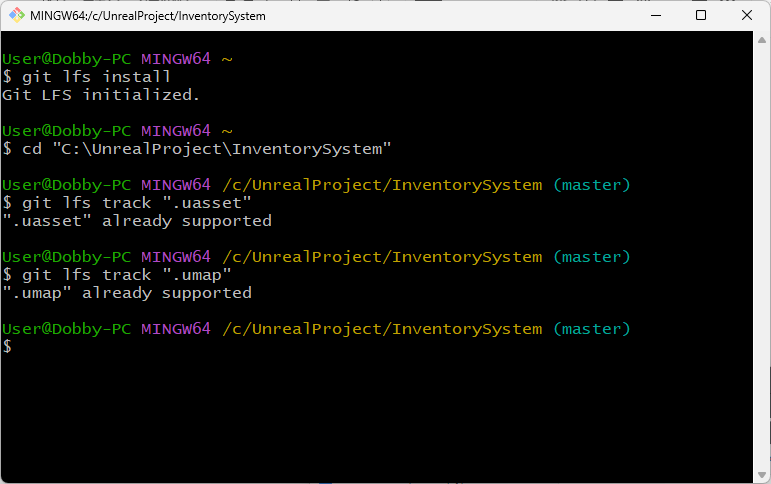
여기까지의 과정을 모두 마쳤다면, Git Bash에서 아래의 명령어들을 입력해주어야 합니다.
1. git lfs install
- 위의 설명과 동일하게, Git LFS를 설치하고 초기화합니다.
2. cd "Project Path"
- Git Bash에서 현재 작업 디렉토리를 언리얼 엔진 프로젝트의 경로로 변경합니다.
- 이후 명령어들이 해당 프로젝트 디렉토리에서 실행될 수 있도록 준비하는 과정입니다.
3. git lfs track ".uasset"
- .uasset 확장자를 가진 파일을 Git LFS로 추적하도록 설정합니다.
- .uasset 확장자를 가지는 에셋 파일(텍스처, 모델, 애니메이션 등)의 관리를 효율적으로 수행하기 위한 과정입니다.
4. git lfs track ".umap"
- .umap 확장자를 가진 파일을 Git LFS로 추적하도록 설정합니다.
- .umap 확장자를 가지는 레벨 파일의 관리를 효율적으로 수행하기 위한 과정입니다.
Connect to Revision Control
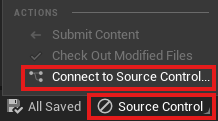
Commit을 진행하기 전에, 'Source Control'에 접속을 해야 합니다.
우측 하단에 있는 [Source Control] - [Connect to Source Control...]의 경로로 'Source Control Login' 창을 켭니다.
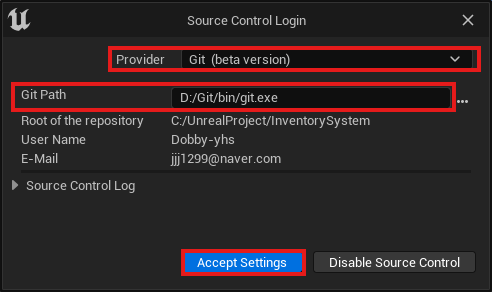
이후, 우리는 Git으로 연동을 진행하고 있는 것이기 때문에
Provider를 Git으로 설정하고, Git Path은 'git.exe'가 존재하는 경로로 설정합니다.
Submit Content
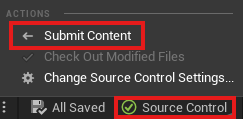
Git과 연동이 완료되었다면, 이제 초기 컨텐츠를 Commit(Submit)합니다.
우측 하단의 [Source Control]에서 [Submit Content]의 경로로 들어갑니다.
'Submit Files' 창에서 Description을 작성하여 Submit을 해줍니다.
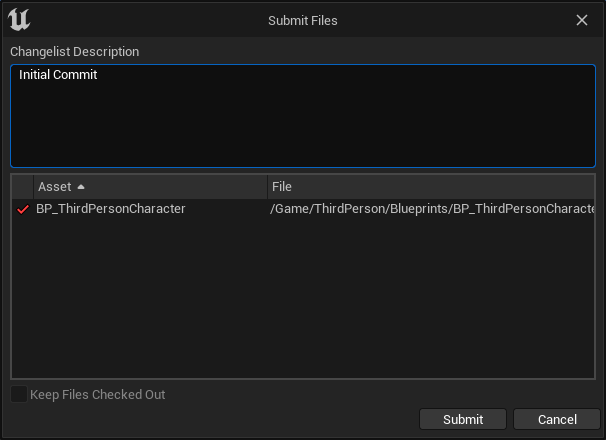
※ Description을 작성하지 않으면, Submit 버튼이 활성화되지 않으니 참고해주시면 될 것 같습니다.
오류 시 해결
위의 과정에서 오류가 발생한다면, 언리얼 에디터와 Git Desktop을 모두 종료한 후에 아래의 과정을 진행합니다.
git과 연동한 프로젝트 파일의 .git 폴더(숨긴 폴더)의 index 파일을 삭제한 후, 'Submit Content'과정을 다시 진행해줍니다.
( 프로젝트 경로₩.git₩index 삭제 )
.gitignore 활용
위의 과정까지 모두 이루어졌다면, 이제 Git에 Publish repository를 해주면 모든 연동이 끝이 납니다.
하지만 언리얼 프로젝트의 용량은 매우 크기도 하고, 보안상의 문제나 굳이 Git에 올리지 않아도 되는 파일들이 존재할 수 있습니다.
그렇기에 .gitignore 파일을 활용하여 이러한 파일들을 Publish하지 않게 설정해줘야 합니다.
어차피 Github는 무료로 사용할 때, 사용할 수 있는 Git LFS Data의 용량과 대역폭이 1GB로 제한되어 있기 때문에
결제를 추가로 하지 않는 이상 .gitignore 파일을 활용하는 것은 선택이 아니라 필수입니다.
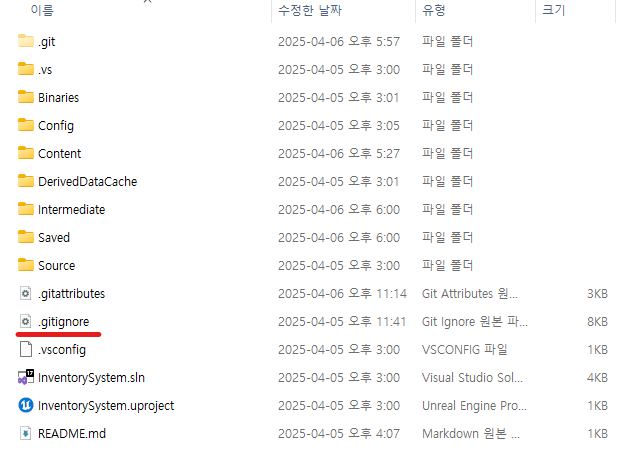
.gitignore 파일을 수정할 때의 사용할 수 있는 문법들이 다양하게 존재합니다.
이 내용에 대한 설명은 아래의 링크를 첨부해둘테니, 참고하고 싶으신 분들은 참고해주시면 좋을 것 같습니다.
Git : .gitignore 문법 및 사용법 정리 (추가: '!' 패턴 동작 안될때 해결법)
.gitignore 란? git을 사용하면서 우리는 용량이 큰 파일이나 업로드해서는 안 되는 key파일 등등을 무시하고 소스코드를 업로드할 수 있도록 선언할 수 있습니다. 이는 .gitignore 라는 파일을 이용하
jw910911.tistory.com
저의 경우에는 기존에 있던 .gitignore 파일에서 주석 처리 한 부분을 추가하여 사용하였습니다.
전체 코드를 원하시는 분들이 있을 수도 있기에, 해당 글 가장 마지막에 전체 코드를 올려두겠습니다.
※ .gitignore 파일은 notepad나 visual studio code를 활용하여 수정이 가능합니다.
Public Repository
History에서 수정한 내용들을 확인할 수 있습니다.
.gitignore 파일을 제대로 수정하였다면, .gitignore에 추가한 파일 및 폴더에 관한 파일들은 모두 사라지게 됩니다.
혹여나 아직 남아있다면 언리얼 에디터와 Git Desktop을 모두 종료한 뒤, 다시 시작해보면 사라져있을 것입니다.
※ 저 또한 .gitignore에 추가한 파일들이 계속 남아있어 몇 번 종료와 재시작을 반복했습니다..

History를 모두 확인하였고 정상적이라면, 이제 정말 Publish만 해주면 모든 과정이 끝이 납니다.

위의 이미지에서 저는 현재 Fetch origin으로 되어 있지만, 처음 이 과정을 진행하는 분들은 'Publish repository' 로 되어 있을 것입니다.
'Publish repository'를 선택하면, 아래의 창이 뜹니다.
프로젝트의 이름과 설명을 작성하고,
'Keep this code private'라는 옵션을 통해 Repository를 public으로 설정할지, private으로 설정할지를 결정하면 됩니다.

'Publish repository' 과정이 정상적으로 진행되었다면, 'Publish repository' 가 'Fetch origin'으로 변경됩니다.
이제 여러분의 Github 홈페이지에 가면, 언리얼 프로젝트가 Repository에 정상적으로 연동된 것을 확인할 수 있을 것입니다.
이후 프로젝트 진행
이후의 프로젝트 진행과 Push에 대해서 설명을 드리겠습니다.
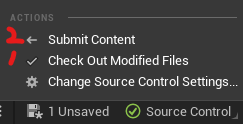
프로젝트 진행을 하시면서 수정된 파일들이나, 새로 생성된 파일들이 있을 것입니다.
해당 파일들에 대해 'Check Out Modified Files'를 선택하여 체크아웃을 진행하고, 'Submit Content'를 선택하여 Submit 과정을 마칩니다.
Git Desktop에서 'Changes'를 확인한 후, Push할 파일을 선택하여 Push Summary와 Description을 작성하여 'Commit to master'를 진행합니다.
그럼 기존의 'Fetch origin'이 'Push origin'으로 변경이 되고, 'Push origin'을 진행하면 Push가 진행됩니다.
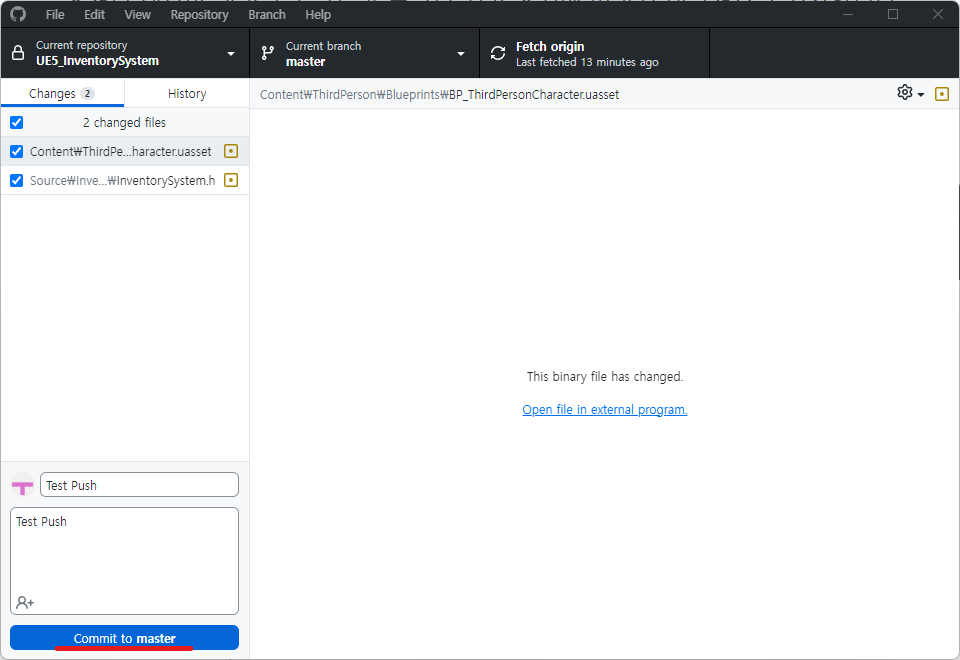

이렇게 되면 언리얼 프로젝트의 Git 연동과 이후 작업까지 모든 과정이 완료되었습니다.
.gitignore 파일 코드
## Ignore Visual Studio temporary files, build results, and
## files generated by popular Visual Studio add-ons.
##
## Get latest from https://github.com/github/gitignore/blob/master/VisualStudio.gitignore

## 추가 시작

# Binary Files
Binaries/*
Plugins/*/Binaries/*

# Builds
Build/*

# Don't ignore icon files in Build
!Build/**/*.ico

# Build data for maps
*_BuiltData.uasset

# Configuration files generated by the Editor
Saved/*

# Compiled source files for the engine to use
Intermediate/*
Intermediate/ProjectFiles/*
Plugins/*/Intermediate/*

# Cache files for the editor to use
DerivedDataCache/*

# Ignore Content
/Content/StarterContent/
/Content/ThirdPerson/Input/
/Content/ThirdPerson/Maps/
/Content/Characters/
/Content/LevelPrototyping/
/Content/__ExternalActors__/
/Content/__ExternalObjects__/

## 추가 끝

# User-specific files
*.rsuser
*.suo
*.user
*.userosscache
*.sln.docstates

# User-specific files (MonoDevelop/Xamarin Studio)
*.userprefs

# Mono auto generated files
mono_crash.*

# Build results
[Dd]ebug/
[Dd]ebugPublic/
[Rr]elease/
[Rr]eleases/
x64/
x86/
[Ww][Ii][Nn]32/
[Aa][Rr][Mm]/
[Aa][Rr][Mm]64/
bld/
[Bb]in/
[Oo]bj/
[Oo]ut/
[Ll]og/
[Ll]ogs/

# Visual Studio 2015/2017 cache/options directory
.vs/
# Uncomment if you have tasks that create the project's static files in wwwroot
#wwwroot/

# Visual Studio 2017 auto generated files
Generated\ Files/

# MSTest test Results
[Tt]est[Rr]esult*/
[Bb]uild[Ll]og.*

# NUnit
*.VisualState.xml
TestResult.xml
nunit-*.xml

# Build Results of an ATL Project
[Dd]ebugPS/
[Rr]eleasePS/
dlldata.c

# Benchmark Results
BenchmarkDotNet.Artifacts/

# .NET Core
project.lock.json
project.fragment.lock.json
artifacts/

# ASP.NET Scaffolding
ScaffoldingReadMe.txt

# StyleCop
StyleCopReport.xml

# Files built by Visual Studio
*_i.c
*_p.c
*_h.h
*.ilk
*.meta
*.obj
*.iobj
*.pch
*.pdb
*.ipdb
*.pgc
*.pgd
*.rsp
*.sbr
*.tlb
*.tli
*.tlh
*.tmp
*.tmp_proj
*_wpftmp.csproj
*.log
*.vspscc
*.vssscc
.builds
*.pidb
*.svclog
*.scc

# Chutzpah Test files
_Chutzpah*

# Visual C++ cache files
ipch/
*.aps
*.ncb
*.opendb
*.opensdf
*.sdf
*.cachefile
*.VC.db
*.VC.VC.opendb

# Visual Studio profiler
*.psess
*.vsp
*.vspx
*.sap

# Visual Studio Trace Files
*.e2e

# TFS 2012 Local Workspace
$tf/

# Guidance Automation Toolkit
*.gpState

# ReSharper is a .NET coding add-in
_ReSharper*/
*.[Rr]e[Ss]harper
*.DotSettings.user

# TeamCity is a build add-in
_TeamCity*

# DotCover is a Code Coverage Tool
*.dotCover

# AxoCover is a Code Coverage Tool
.axoCover/*
!.axoCover/settings.json

# Coverlet is a free, cross platform Code Coverage Tool
coverage*.json
coverage*.xml
coverage*.info

# Visual Studio code coverage results
*.coverage
*.coveragexml

# NCrunch
_NCrunch_*
.*crunch*.local.xml
nCrunchTemp_*

# MightyMoose
*.mm.*
AutoTest.Net/

# Web workbench (sass)
.sass-cache/

# Installshield output folder
[Ee]xpress/

# DocProject is a documentation generator add-in
DocProject/buildhelp/
DocProject/Help/*.HxT
DocProject/Help/*.HxC
DocProject/Help/*.hhc
DocProject/Help/*.hhk
DocProject/Help/*.hhp
DocProject/Help/Html2
DocProject/Help/html

# Click-Once directory
publish/

# Publish Web Output
*.[Pp]ublish.xml
*.azurePubxml
# Note: Comment the next line if you want to checkin your web deploy settings,
# but database connection strings (with potential passwords) will be unencrypted
*.pubxml
*.publishproj

# Microsoft Azure Web App publish settings. Comment the next line if you want to
# checkin your Azure Web App publish settings, but sensitive information contained
# in these scripts will be unencrypted
PublishScripts/

# NuGet Packages
*.nupkg
# NuGet Symbol Packages
*.snupkg
# The packages folder can be ignored because of Package Restore
**/[Pp]ackages/*
# except build/, which is used as an MSBuild target.
!**/[Pp]ackages/build/
# Uncomment if necessary however generally it will be regenerated when needed
#!**/[Pp]ackages/repositories.config
# NuGet v3's project.json files produces more ignorable files
*.nuget.props
*.nuget.targets

# Microsoft Azure Build Output
csx/
*.build.csdef

# Microsoft Azure Emulator
ecf/
rcf/

# Windows Store app package directories and files
AppPackages/
BundleArtifacts/
Package.StoreAssociation.xml
_pkginfo.txt
*.appx
*.appxbundle
*.appxupload

# Visual Studio cache files
# files ending in .cache can be ignored
*.[Cc]ache
# but keep track of directories ending in .cache
!?*.[Cc]ache/

# Others
ClientBin/
~$*
*~
*.dbmdl
*.dbproj.schemaview
*.jfm
*.pfx
*.publishsettings
orleans.codegen.cs

# Including strong name files can present a security risk
# (https://github.com/github/gitignore/pull/2483#issue-259490424)
#*.snk

# Since there are multiple workflows, uncomment next line to ignore bower_components
# (https://github.com/github/gitignore/pull/1529#issuecomment-104372622)
#bower_components/

# RIA/Silverlight projects
Generated_Code/

# Backup & report files from converting an old project file
# to a newer Visual Studio version. Backup files are not needed,
# because we have git ;-)
_UpgradeReport_Files/
Backup*/
UpgradeLog*.XML
UpgradeLog*.htm
ServiceFabricBackup/
*.rptproj.bak

# SQL Server files
*.mdf
*.ldf
*.ndf

# Business Intelligence projects
*.rdl.data
*.bim.layout
*.bim_*.settings
*.rptproj.rsuser
*- [Bb]ackup.rdl
*- [Bb]ackup ([0-9]).rdl
*- [Bb]ackup ([0-9][0-9]).rdl

# Microsoft Fakes
FakesAssemblies/

# GhostDoc plugin setting file
*.GhostDoc.xml

# Node.js Tools for Visual Studio
.ntvs_analysis.dat
node_modules/

# Visual Studio 6 build log
*.plg

# Visual Studio 6 workspace options file
*.opt

# Visual Studio 6 auto-generated workspace file (contains which files were open etc.)
*.vbw

# Visual Studio LightSwitch build output
**/*.HTMLClient/GeneratedArtifacts
**/*.DesktopClient/GeneratedArtifacts
**/*.DesktopClient/ModelManifest.xml
**/*.Server/GeneratedArtifacts
**/*.Server/ModelManifest.xml
_Pvt_Extensions

# Paket dependency manager
.paket/paket.exe
paket-files/

# FAKE - F# Make
.fake/

# CodeRush personal settings
.cr/personal

# Python Tools for Visual Studio (PTVS)
__pycache__/
*.pyc

# Cake - Uncomment if you are using it
# tools/**
# !tools/packages.config

# Tabs Studio
*.tss

# Telerik's JustMock configuration file
*.jmconfig

# BizTalk build output
*.btp.cs
*.btm.cs
*.odx.cs
*.xsd.cs

# OpenCover UI analysis results
OpenCover/

# Azure Stream Analytics local run output
ASALocalRun/

# MSBuild Binary and Structured Log
*.binlog

# NVidia Nsight GPU debugger configuration file
*.nvuser

# MFractors (Xamarin productivity tool) working folder
.mfractor/

# Local History for Visual Studio
.localhistory/

# BeatPulse healthcheck temp database
healthchecksdb

# Backup folder for Package Reference Convert tool in Visual Studio 2017
MigrationBackup/

# Ionide (cross platform F# VS Code tools) working folder
.ionide/

# Fody - auto-generated XML schema
FodyWeavers.xsd
'UE5' 카테고리의 다른 글
| [UE5] FORCEINLINE, Overloading, Clamp (0) | 2025.05.02 |
|---|---|
| [UE5] Enum & Struct (0) | 2025.04.13 |